By Brandon Cummings, Co-Founder & Head of Product, FlowPath
Most of the AI tools built for facilities teams start with the same assumption: you're going to sit down at a desk, type a request, read the response, and act on it.
That's not how maintenance works.
Your technicians are on rooftops. They're in boiler rooms with both hands full. They're walking 40 sets of doors on an inspection and they need to keep moving. They don't have time to type. They barely have time to stop.
When we rebuilt the FlowPath AI Assistant this year, the question we kept coming back to wasn't what else can we make it do. It was how do we make it match the way facilities teams actually move through their day? The answer changed the product. It changed how the AI Assistant listens, how it thinks through problems, and how it handles the real situations your team faces in the field every morning.
If you've already read the full upgrade breakdown, you know what's new. This post is about why we built it this way, and what it looks like when your team actually uses it.
Stream of Thought: Just Talk
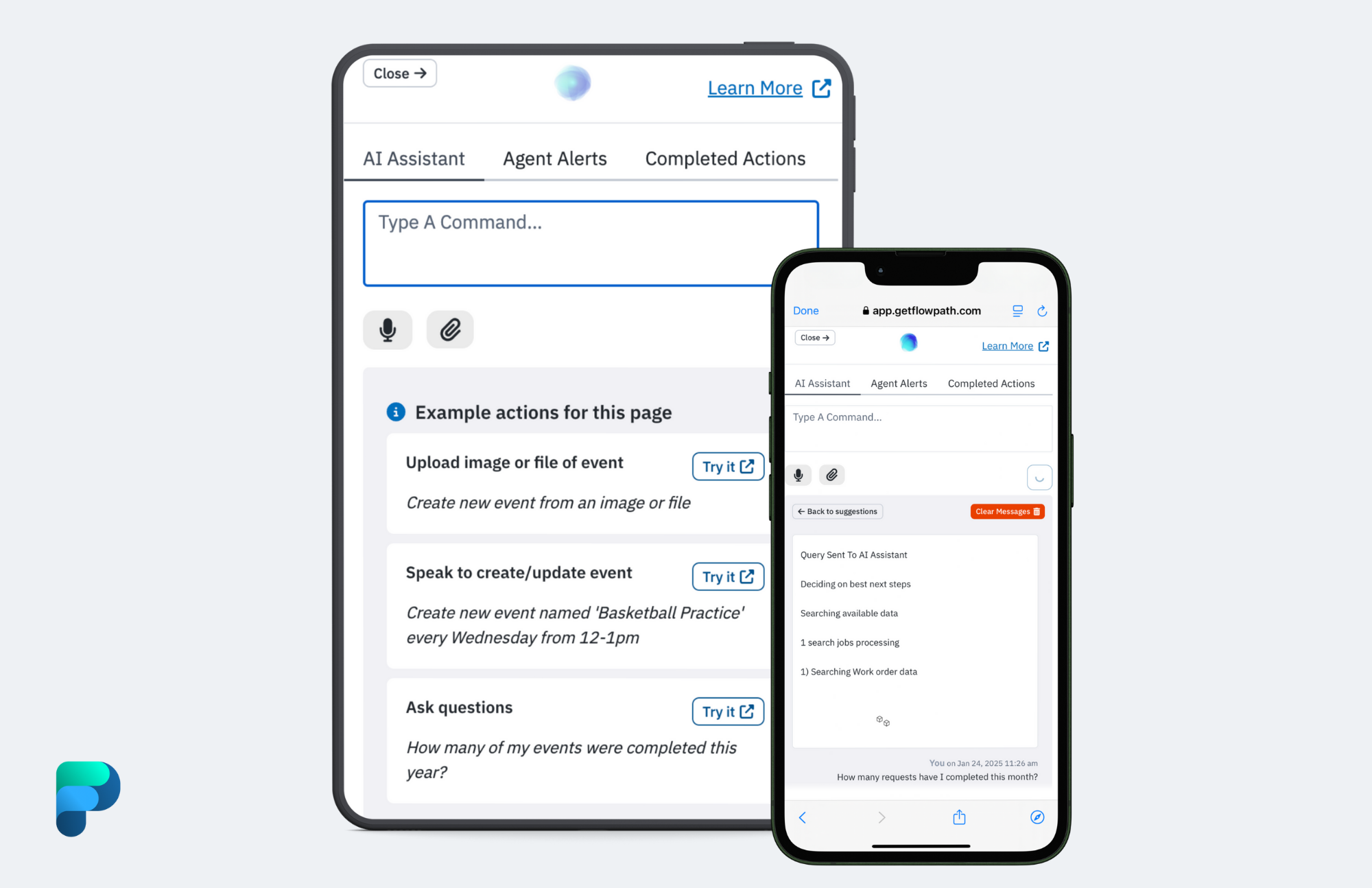
Here's the feature we're most proud of, and it's the one that sounds the simplest: you can just talk to the FlowPath AI Assistant, and it keeps up.
We call it stream of thought. When you're speaking — whether you're updating a work order, describing a piece of equipment, or logging what you see on an inspection — the AI Assistant detects natural pauses in your speech. It doesn't wait for you to hit a button. It transcribes as you go, submitting in chunks as you talk, and it starts acting on what you've said before you've even finished.
So a technician standing in front of an HVAC unit can open a work order on their phone and say: "I'm looking at this unit, the compressor is making a grinding noise, I'll be back out here Tuesday, go ahead and update the status and add the labor estimate at four hours." The AI Assistant hears all of that. It queues each action — status change, labor estimate, scheduling note — and processes them as they come in. The tech doesn't have to type a word. They don't even have to stop walking.
This matters because every minute a technician spends typing into a screen is a minute they're not doing the actual work. And if updating the system is slow or tedious, the data never gets entered. The preventive maintenance schedule ends up built on incomplete information. The reports to leadership don't tell the full story. The next person who opens that work order has no idea what happened.
Stream of thought input is available everywhere you interact with the AI Assistant: work orders, equipment records, inspections, and inventory adjustments. It turns the AI Assistant from something you use at a desk into something that works alongside you while you work.
AI Diagnose: Your Team's First Look at the Problem
One of the most common situations in maintenance is this: a work order comes in, and the person looking at it doesn't have the full picture. Maybe it's a junior tech who hasn't worked on that equipment before. Maybe it's a team lead triaging 30 work orders for the week. Maybe it's an admin trying to decide whether something needs to be escalated.
We built AI Diagnose for that moment.
When you open a work order and hit AI Diagnose, the AI Assistant pulls together everything it can find: the description and comments on the work order, the maintenance history on that piece of equipment, historical work orders at that location, custom field data, and attached photos. It doesn't just read the work order in front of you. It reads the context around it.
Then it gives you a structured assessment: here's what appears to be happening, here are the likely contributing factors based on this equipment's history, and here are the steps it recommends.
And then it asks: Would you like me to create a checklist of these steps on this work order?
If you say yes, those items become an actual checklist attached to the work order. A team lead can diagnose the problem from their desk, build the checklist, and hand the work order to a junior tech who now has a step-by-step guide reviewed by someone who understands the issue.
Real-Time Photo Diagnosis
But here's where it gets interesting. Say your tech is on-site, and the diagnosis doesn't quite match what they're seeing. They can respond right in the same conversation: "Actually, here's what it looks like." They snap a photo — a burst pipe, a corroded coil, a panel with a fault code — and the AI Assistant recalibrates. It takes the new visual information, reconsiders the diagnosis, and updates its recommendations.
That back-and-forth is real. The AI Assistant holds the full thread, including everything it looked up, everything you told it, and every photo you submitted. It refines its thinking as the picture gets clearer. It's not a one-shot recommendation. It's an ongoing conversation between your team's knowledge and the system's data.
AI Summarize: Instant Context on Any Record
If you've ever opened a work order that's been active for six months and tried to piece together what happened from a wall of comments and status changes, you know the problem AI Summarize solves.
One click. The AI Assistant reads every activity log entry, comment, status change, assignment, attachment, and cost record on that work order and gives you a clean, readable summary of the entire history. What was reported, who responded, what actions were taken, and where things stand now.
It also generates a visual timeline: a flowchart that maps the sequence of events so you can see the story at a glance.
AI Summarize for Equipment Records
AI Summarize works on equipment records too. Open a piece of equipment you've never looked at before, hit summarize, and get the full picture: maintenance history, cost patterns, recurring issues, and current status. Think about every situation where someone needs context fast — handoffs between shifts, audit prep, quarterly operations reviews, a new facilities director inheriting an unfamiliar building. Instead of clicking through tabs and piecing it together yourself, you get the story in seconds.
And if the summary raises a question, you can keep going. AI Summarize feeds directly into your AI Assistant thread. Ask a follow-up question, request more detail on a specific cost pattern, or ask the AI Assistant to compare this equipment's performance against similar assets. The conversation continues from where the summary left off.
Live Stream: Your Camera, Your Voice, One Workflow
This is the feature that changes how your team spends their day in the field. We want to walk through exactly how it works because it combines several things at once.
Live Stream to Create Equipment
You're walking a campus. You need to tag every HVAC unit on the roof of Building C. Open Live Stream, point your phone's camera at the first unit, and start capturing. Take a wide-angle photo. Take a close-up of the nameplate. Record your notes while you're looking at it: "This is a Carrier rooftop unit, looks like it was installed around 2018, north side of the building, accessible from the roof hatch."
Hit submit. The AI Assistant takes the photos, the audio transcription, and creates the equipment record. It extracts make, model, and serial number from the nameplate photo and populates the fields from your description. Then you walk to the next unit and do it again. Each submission queues up in the AI Assistant, and records start populating while you're already moving to the next piece of equipment.
One of our users did exactly this on a roof recently. He tagged every unit on a single building in under ten minutes, dragged in some photos he'd already taken, queued them up, and the AI Assistant created each record. That kind of speed during an equipment audit used to take half a day per building.
Live Stream to Update Equipment
Same idea, but for equipment that already exists in your system. Navigate to the equipment record, or scan its QR code, and hit Live Stream. The AI Assistant already knows the target because it's locked to that asset. Take updated photos, narrate what you're seeing, and submit. The record updates with new photos, new notes, and any changes you described.
Live Stream for Inspections
This is the one that saves the most time for teams running daily or weekly inspections. If you have a fire extinguisher inspection, a playground check, a temperature reading route, or anything where you're completing dozens of items in sequence, Live Stream changes the workflow completely.
You can start a general Live Stream on the inspection and walk your route. Scan the QR code on each item, take your photos, record your notes, and submit. The AI Assistant finds the inspection item that matches what you scanned and completes it.
Or you can go item by item within the inspection, hitting Live Stream on each one. The target is already set, so you just capture and submit. Either way, you're not stopping to type. You're not navigating menus. You're walking, scanning, talking, and moving on. The items queue up in the background. By the time you finish your route, the inspection is done.
For teams that complete temperature readings, pressure gauge checks, door inspections, or daily building walkthroughs, this is the equivalent of going from a clipboard to a system that completes itself as you walk.
Live Stream for Inventory
Receiving shipments or doing hard counts in a warehouse works the same way. Walk up to a bin, open Live Stream, take a photo of what you're looking at, tell the AI Assistant the quantity, and submit. It recognizes barcodes and QR codes tied to your inventory items and creates the adjustment.
Receiving a shipment? Photograph the boxes, scan the labels, and tell it the quantities. The adjustment gets logged while you're moving to the next pallet.
What This Actually Looks Like Day-to-Day
We spend a lot of time thinking about who's using this and when, because the same feature serves different people in different ways.
A technician in the field opens a work order on their phone. They hit the voice button and say what they see, what they did, and what still needs to happen. The work order updates itself. They don't pull off their gloves to type. They don't wait until they're back at a desk.
A team lead with a stack of work orders to assign this week opens each one, hits AI Diagnose, reviews the recommendation, builds a checklist, and hands it to the right person. The junior tech who picks it up has a clear set of steps, not just a vague description.
A facilities director preparing for a quarterly operations review asks the AI Assistant to summarize the last three months of activity on a problem building. Instead of pulling reports and cross-referencing spreadsheets, they get a narrative with the key data points in one conversation.
An administrator onboarding a new customer uses Live Stream and multi-photo creation to build the entire equipment library during a single site visit. What used to take a week of data entry happens in an afternoon.
All of these people are using the same AI Assistant. It just meets them where they are.
Where We're Headed
Everything we've described in this post is live today. Every FlowPath customer has access to it, included with their subscription at no additional cost.
But this is the foundation, not the finish line. We're expanding Agent Teams — specialized groups of agents that run operational workflows on their own, on schedules you set. Equipment standardization. PM schedule and inspection generation. Inventory monitoring and repurchasing. Vendor and contractor communication through work orders. Event management. Reporting and forecasting. We're building each one to handle the recurring work that drives operational maturity: the weekly triage, the monthly reviews, the quarterly capital conversations.
And the AI Assistant keeps getting better at understanding the context of your operation. The more your team uses it, the more precise it becomes at anticipating what you need next.
We built this because we believe facilities teams deserve tools that actually fit the way they work — not tools that force them to change how they work to fit the software. The FlowPath AI Assistant is that tool, and we're building on it every day.
Want to see it in your environment? Schedule a conversation with our team and we'll walk through the AI Assistant in the context of your specific operation.
Frequently Asked Questions
How is AI Diagnose different from just reading the work order?
AI Diagnose doesn't just read what's in front of you. It pulls historical maintenance data on the equipment and location, reviews past comments and resolutions on similar issues, and synthesizes all of that into a structured assessment with recommended next steps. It also accepts photos mid-conversation, so your team can share what they're seeing in real time and get updated recommendations.
Can I use stream of thought voice input on mobile?
Yes. Voice input, Live Stream, and camera capture all work on any mobile browser. No app download required. Your technicians can use all of these features from their phones in the field.
Does the AI Assistant cost extra?
No. The AI Assistant is included with every FlowPath subscription at no additional cost. Agent Teams, which automate operational workflows on recurring schedules, are available separately for organizations ready to take that step.
What if the AI diagnosis is wrong?
The AI Assistant shows its reasoning, and you can push back. Share a photo, add context, or tell it what you're actually seeing. It recalibrates based on the new information. Every action still requires your confirmation by default. Nothing is written to your system without your approval unless you've opted into Autonomous Mode.
How does Live Stream work for inspections?
You can start a general Live Stream on an inspection and walk your route, scanning QR codes on each item, capturing photos, recording notes, and submitting as you go. The AI Assistant matches each submission to the correct inspection item and completes it. Or you can open Live Stream on individual inspection items, where the target is already set. Either way, the items queue in the background while you keep moving.